Wifi Dual-Band product - Excellent product at a great price. Nothing to dislike.
 20% off
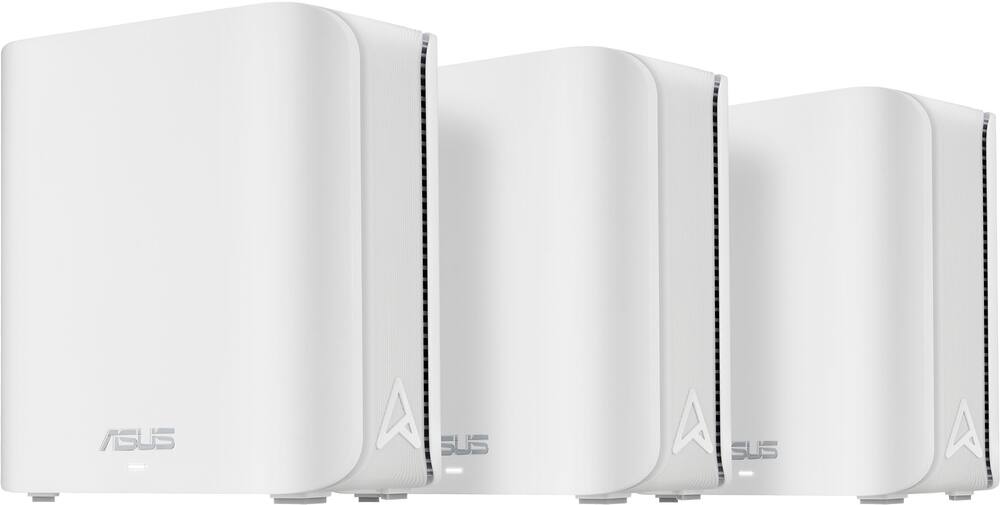
ASUS – ZenWiFi BE5000 PRO Dual-Band Mesh Wi-Fi 7 System (3-pack) – White
SKU: 6669980
$27999
Was $349.99 Save $70.00
Other options in this range
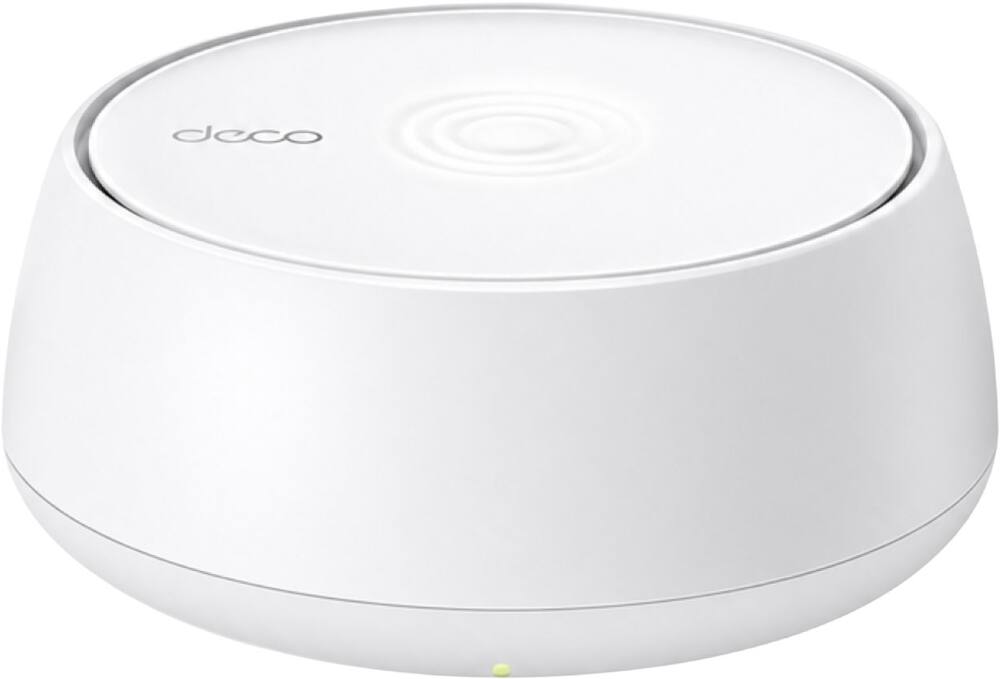 TP-Link - Deco 7 BE5000 Dual-Band Wi-Fi 7 Whole Home Mesh Router System – Deco BE5000 (1-Pack) - White Original price was: $149.99.$119.99Current price is: $119.99.
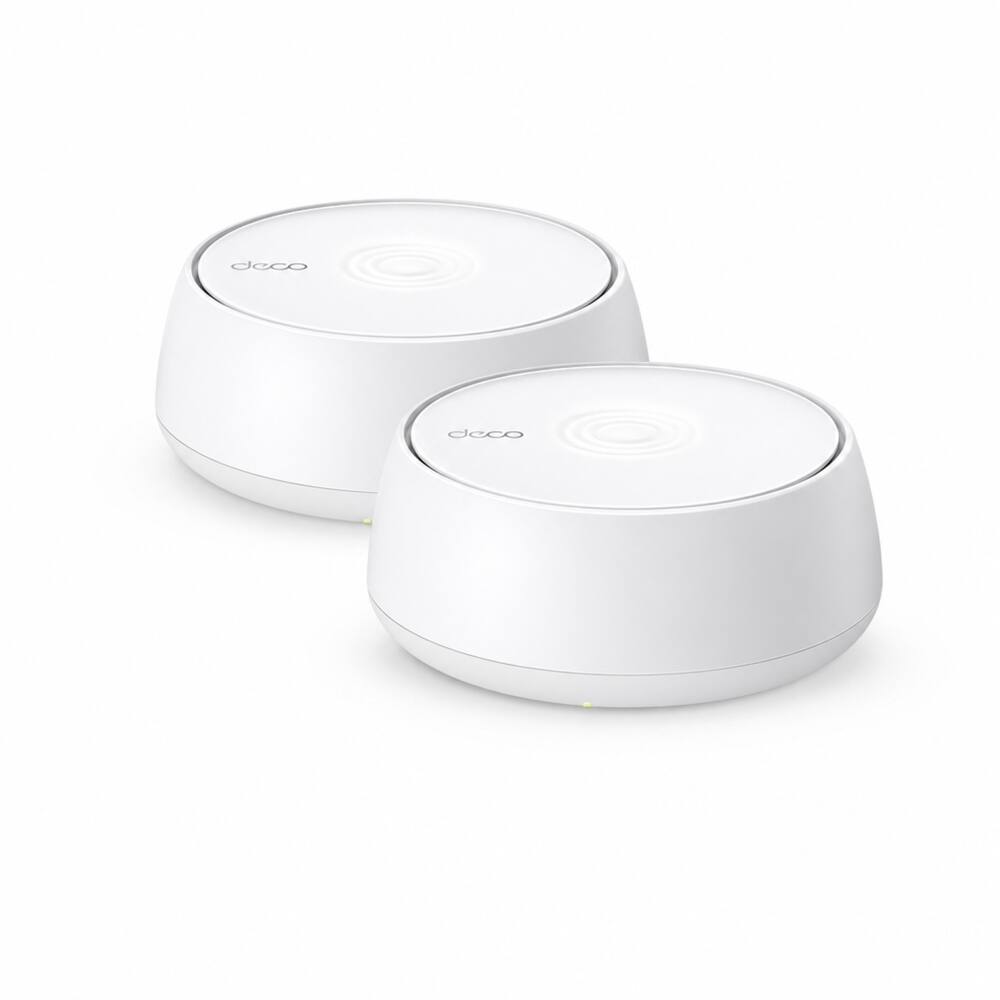 TP-Link - Deco 7 BE5000 Dual-Band Wi-Fi 7 Whole Home Mesh Router System – Deco BE5000 (2-Pack) - White Original price was: $279.99.$223.99Current price is: $223.99.
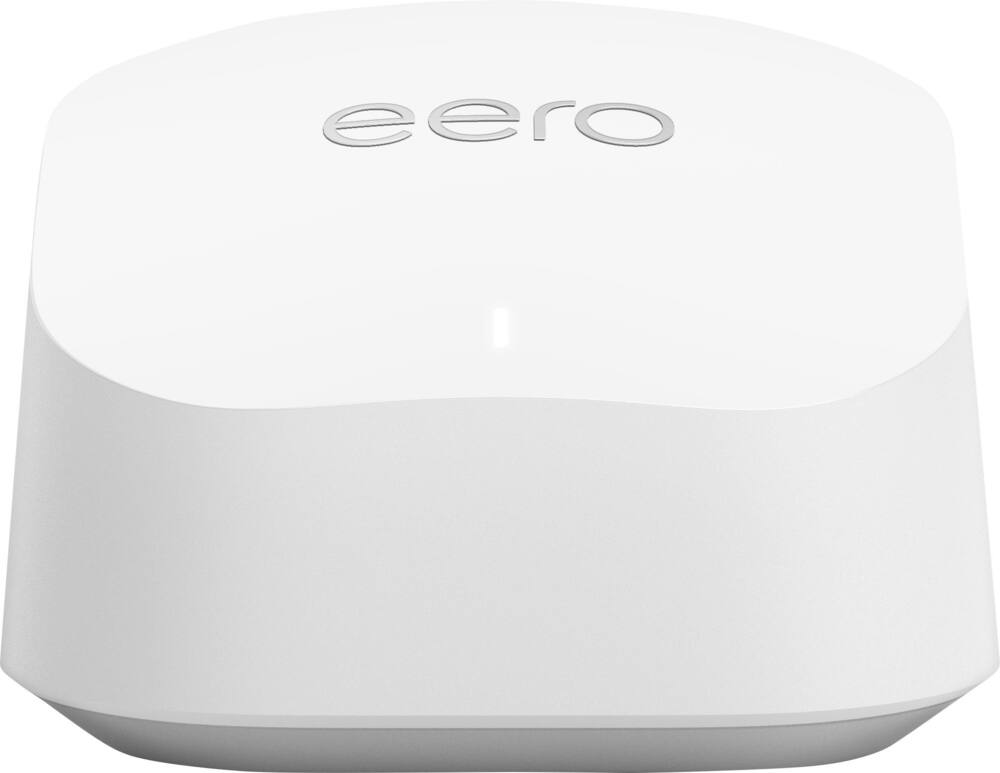 eero - 6+ Mesh Wi-Fi Router - White Original price was: $139.99.$111.99Current price is: $111.99.
Overview
- Next‑Gen Wi-Fi 7 Performance
Dual-band Wi-Fi 7 speeds up to 5000 Mbps with MLO and 4K-QAM - Seamless Whole‑Home AiMesh
ASUS AiMesh technology boosts coverage up to 6800 sq. ft. (3-pack) and easy extendibility with compatible ASUS routers for seamless and secure whole home Wi-Fi - Dead‑Zone‑Free Signal
Four internal antennas and four high-power front-end modules eliminate Wi-Fi dead zones - Premium Security, Always On
24/7 end-to-end protection with commercial-grade AiProtection Pro and advanced VPNs - Smarter Controls
IoT Network, parental controls & VPN easy setup on multiple devices with Smart Home Master SSIDs - Dual 2.5G Wired Speed
Dual 2.5G Ethernet ports with auto detection - High‑Performance Processing
Quad-core 1.5 GHz CPU and robust cooling
Compare similar
| Feature |
VIEWING ASUS - ZenWiFi BE5000 PRO Dual-Band Mesh Wi-Fi 7 System (3-pack) - White
|
TP-Link - Deco 7 BE5000 Dual-Band Wi-Fi 7 Whole Home Mesh Router System – Deco BE5000 (1-Pack) - White
|
TP-Link - Deco 7 BE5000 Dual-Band Wi-Fi 7 Whole Home Mesh Router System – Deco BE5000 (2-Pack) - White
|
LOWEST PRICE IN THIS TABLE eero - 6+ Mesh Wi-Fi Router - White
|
|---|---|---|---|---|
| Price | $279.99 | $119.99 | $223.99 | $111.99 |
| This product | View details | View details | View details |
Specifications
Capacity & configuration
- Encryption Type
- WPA-Personal
- Firewall Type
- SPI
- Port Type(s)
- RJ-45
Dimensions & weight
- Product Name
- ZenWiFi BE5000 PRO Dual-Band Mesh Wi-Fi 7 System (3-pack)
- Product Height
- 5.51 inches
- Product Length
- 2.76 inches
- Product Width
- 5.51 inches
- Product Weight
- 1.12 pounds
Features
- Brand
- ASUS
- Color
- White
- Data Encryption
- Yes
- Security Features
- AiProtection Pro Network Security, Instant Guard VPN, Parental Controls
- Parental Controls
- Yes
- Quality Of Service (QoS) Traffic Prioritization
- Yes
- Band Technology
- Dual
- Ethernet Standard
- 10/100/1000/2500
- Number of Antennas
- 4
- Frequency Band
- 2.4 GHz
- Wireless Networking Standard
- Wi-Fi 7
- Wireless Standard
- BE
- Input/Output Technology
- MU-MIMO (Multi-user Multiple-Input Multiple Output)
- Number of 2.4Ghz Streams
- 2
- Number of 5.0Ghz Streams
- 2
- Wi-Fi Mesh System
- Yes
- Number of Wi-Fi Satellites Included
- 3
- Number of Wi-Fi Satellites Supported
- 50
- ENERGY STAR Certified
- No
- App Compatible
- Yes
- App Name
- ASUS Router APP
- Beamforming
- Yes
- Integrated Modem
- No
- Wireless
- Yes
- Number Of WAN Ports
- 2
- Number Of LAN Ports
- 2
- Bluetooth Enabled
- No
- UPC
- 199291357105
Power & warranty
- Model Number
- ZenWiFi BE5000 PRO 3PK
- Warranty - Parts
- 3 years
- Warranty - Labor
- 3 years
Warranty & protection
Included manufacturer warranty
See manufacturer documentation.
Register your product with the manufacturer within 30 days of delivery.
Warranty service
Manufacturer warranty claims are handled by the manufacturer. We are happy to help you find the right contact: (888) 419-6820.
Customer reviews
Write a reviewConstant problems on our network with ~60 clients - This mesh system, our second ASUS mesh system, has begun to fail in our 1800sf one story home. The problem seems to be the processing power of the main router is incapable of keeping up with its DHCP server and batch of IOT devices and cams around the house. I'm in a wheelchair and need more voice activated switches and the like to make my life easier. I'm not sure what the fix is although with the help of feeding the system logs (I recently shifted over to be stored on our NAS) to Claude AI I was able to move some of the IOT devices over to a new dedicated network which allowed us to move some of the traffic off the main network, even if the bandwidth is still shared. We have a cell-based provider which has been nearly rock solid, although the device itself (now only used as a modem) is rudimentary it's been surprisingly stable for a 5G system. We have two newish ASUS laptops in the office here and I don't have much of a beef with ASUS other than, when trying to get some tech support for this, the only suggestions from their chatbots were very basic and then "okay just reset the device to factory defaults and lose all the work you've put into getting your network just right" with the last few words my own, not theirs.
Works well - Its good for a small range of space, if you have a big house get something that covers more area
Wouldn’t connect with my router - Would t connect with the router even called the internet provider out he spent 2 hours trying to get it to connect. Went and got a netgear system and it connected instantly
Good Mesh System - This installation took some time, even though some users say it went flawlessly. I was replacing an outdated Orbi system and bought this because the reviews said it was easy to install. This system also did not require any subscriptions to keep it working properly in the years to come. I did encounter installation problems with the units not syncing properly, and I had to try a few times before I got it working as it should. So far, so good, and I have not had any problems since. Let's see how long this stays stable and last?
One satellite not working - Will be returning. One satellite is not working properly
Good coverage! - Up front: I have an ASUS Quad band WiFi7 router and am familiar with its interface. Adding these BE5000 Pro to my existing ASUS router was as simple as possible. I have 1 wired backhaul and the other 2 are wireless. I was even able to shape which AP talks to which AP (or router). I haven’t seen any disconnects and clients talk to their closest AP. Good upgrade for my scenario.
Good Coverage - These routers truly have good coverage! The nodes having Ethernet ports is a bonus for me!
Easy to install - This ASUS is so much faster than the equipment from the cable supplier. The mesh system reaches all areas of our home even though our home is plaster instead of drywall.
Too lazy to return - The mesh wifi sysytem is weak and low in range. Stuck to asus cause i already had 2 nodes. Now i have a total of 5 and range seems improved a tad but connect dies out tk the pro. Moving in 2 months so im too lazy to return.
Very disappointing - I bought these to use as additional mesh nodes with an existing ASUS mesh network. All these did was lock up. Despite multiple reset attempts these never worked and I returned them. I like ASUS products, but I’ve never been so frustrated and disappointed by their equipment prior to this. I had been trying to extend my current WiFi 7 network but again just lockups with these. I went back to my older ASUS WiFi 6e nodes for the time being as extenders.
Nice WiFi system for a smaller house - The ASUS - ZenWiFi BE5000 PRO Dual-Band Mesh Wi-Fi 7 system is a three node system. It arrived boxed well. Set up: I didn't realize until after I started setting it up that there is one node that is marked as the main one to start setting up first. I had trouble getting the nodes to connect with each other so I reset them to factory default and started the setup again. The app seems good but it has many options that are not self explanatory. I found that using the Quick Internet Setup option under Settings provided the easiest setup of all methods. I connected all three nodes close to the main one that is connected to the modem and then let the Quick Internet Setup do its thing. It took care of the setup much more quickly and all three nodes were showing a white light which means they are connected to internet. I made sure the nodes had all updated to the latest firmware to make sure that did not cause any problems. Ethernet: My house is large so I have ethernet ports in the far sides of the upstairs and basement to allow better coverage. At this point, I moved the nodes to where the ethernet ports are located and connected them. The speeds seemed good at first but then I had some trouble with the nodes staying connected. After awhile I rebooted the nodes and tried again. When the nodes stayed connected, the speeds were good when close to the node but when I went into the next room, the signal was bad and the speed suffered greatly. I tried repeatedly to test the speeds and coverage. The coverage was better when the nodes were not connected to ethernet and were using Wi-Fi backhaul to connect but the nodes were too far away from each other to stay connected. Summary: I was disappointed with this system but it may be my house or something I was not doing correctly.
Huge improvement to my home wifi! - After using the ASUS ZenWiFi BE5000 Pro three-pack for a while, I can honestly say it’s one of those products that makes your home technology feel better without constantly reminding you it’s there. Wi-Fi is one of those things you only tend to notice when it’s slow, drops out, or leaves certain parts of the house with weak coverage. When everything works the way it’s supposed to, you stop thinking about it entirely. That’s exactly what happened after I installed this system. I was replacing an older router that had started to show its age. It wasn’t terrible, but as we’ve continued adding more connected devices around the house, I found myself restarting it more often than I’d like. We have laptops, phones, tablets, gaming systems, streaming devices, smart TVs, smart speakers, security cameras, and a growing collection of smart home accessories, so our network gets a pretty good workout every day. My goal wasn’t necessarily to chase the highest speed test numbers, it was to get dependable coverage throughout the house and eliminate the little connectivity annoyances that seem to add up over time. The setup process ended up being my first pleasant surprise. I plugged in the main unit, downloaded the app, and followed the prompts. The app quickly found the router, guided me through creating my network name and password, checked for updates automatically, and explained each step without making it feel overly technical. Once the primary unit was online, adding the other two mesh nodes was just as straightforward. The app recognized them quickly and walked me through the process of integrating them into the network. What I appreciated most was that I never felt like I needed to leave the app and search online for instructions. Every step made sense, and everything happened in the order I expected. Within a relatively short amount of time, my entire mesh network was online and ready to go. Once everything was running, the improvement in coverage became obvious almost immediately. Before installing this system, there were always a couple of places in the house where Wi-Fi performance was inconsistent. Those weren’t complete dead zones, but they were areas where video calls might occasionally freeze, streaming would sometimes buffer, or pages simply loaded more slowly than they should. Since installing the ZenWiFi system, those issues have essentially disappeared. The signal feels much more consistent throughout the entire house. Instead of having excellent performance near the router and noticeably weaker performance farther away, every room now feels like it has the same quality connection. That’s really the biggest benefit of a good mesh system, and ASUS seems to have done a great job making that transition seamless. I work from home quite a bit, and my days are filled with video meetings, cloud-based applications, document sharing, and constant internet use. At the same time, the rest of the family is often streaming shows, playing games, or using tablets around the house. That creates a fairly demanding environment for any home network. Since installing this system, I haven’t really had to think about it. Meetings have stayed stable. Downloads complete consistently. Video calls remain clear. Streaming services load quickly and continue playing without random buffering. It sounds simple, but having Wi-Fi that quietly does its job every single day is incredibly valuable. I’ve also noticed that devices reconnect almost instantly if they’ve been asleep or temporarily disconnected. Laptops wake up and immediately have internet access. Phones connect as soon as I arrive home. Smart home devices remain responsive without requiring constant troubleshooting. Those little moments add up over time because they remove tiny frustrations from everyday life. Gaming has also been a positive experience. While I’m more of a casual gamer than someone playing competitively every night, I still appreciate a stable connection. Game downloads finish quickly, updates install without issue, and online gameplay has remained smooth. Even when someone else in the house is streaming video or participating in a video call, I haven’t noticed the connection becoming unstable. Having three units also gives plenty of flexibility depending on the size and layout of your home. I was able to place one near my modem, another toward the center of the house, and a third farther away to extend coverage where I previously had weaker signal. Because the app helps confirm placement, I never felt like I was just guessing whether they were positioned correctly. Looking back after living with the ASUS ZenWiFi BE5000 Pro, the biggest compliment I can give it is that it has completely faded into the background. That’s exactly what I want from networking equipment. I don’t want to spend time troubleshooting my Wi-Fi or wondering why something isn’t connecting. I simply want every device to work wherever I happen to be in the house. The combination of an incredibly simple app-based setup, excellent whole-home coverage, and consistently reliable performance has made this one of the easiest networking upgrades I’ve made. From the moment I opened the box through everyday use, the experience has been refreshingly straightforward. The ASUS app deserves a lot of credit for making installation approachable, while the mesh system itself delivers the kind of stable coverage that makes working from home, streaming, gaming, and managing a busy household feel effortless. After spending time with it, those are the features that have stood out the most and the reasons I’d confidently recommend it to anyone looking to improve their home Wi-Fi experience.
Great mesh WIFI with some nice security features - Need a new wireed/wireless router? Well you can not get a better one than this one (IMO). Here are some highlights and some lowlights on this unit. Good: 1. Mesh network helps get rid of dead spots in your house 2. Having newest version of wifi protocol makes it easy to secure and adds longevity to the system ( as in it will work for a decent amount of time with future updates) 3. Small in size, makes it easy to hide or at least make it stand out less in the location you choose 4. Strong signal strength and data flow 5. 2 rear data ports for connecting printers/desktops/etc to a dedicated data line to avoid wireless interference. 6. Easy to setup with tablet or phone, making the direct connect to computer a thing of the past 7. QOS, DMZ, and other items that make it conform to your needs. Like more security, making a kids network with parental restrictions and a guest network that does not connect to your SSID and let them see your devices 8. Firewall, remote access, and other admin controls that assist in keeping your networked locked down and less likely to get a DDOS. 9. Ability to restrict or block IP's, MAC's, and devices 10.Seems to auto switch to closest mesh device as I walk through the house, making sure I am always connected Bad: 1. When setting up the device(s), you have to have them close together to get them to link up. 2. Some menus are buried in not so easy to find places. Making the ? option used more than normal 3. When ever a setting is changed, it will knock you off the network until it has restarted. 4. Quick guide needs more info on setting up, and dedicated language sections. It is hard to read with they are all on same page 5. If you have a existing wireless setup, be prepared to have this interfere with its signal and kick you offline sometimes. So set it up with the intent of not using the other in the process. I am glad I got it and look forward to creating my own mini network hub at home.
Great ! - I live in a townhouse where there has been numerous wifi and cellular connectivity issues, especially on the ground floor. This Asus was recommended, and so far it has worked well. Out of the box, the modules were larger than I imagined. They were quite boxy and definitely not innocuous. Set up was a challenge as the unit seemed to update quite a bit and slowly. I found it best to take it slow as setup was just not fast. Once up and running, coverage was a definite improvement, although it seemed to have less options. This was actually fine for me. I did notice an improvement in coverage and speed, especially outside and in the garage. I did also notice that they system worked better with 2 nodes vs the 3 that came with the system. All in all, I have noted a significant improvement in coverage and smoothness of connection, especially in parts of the house like the garage and outside. To me that was a definite plus. I do wish the units/ nodes were not as large, but the increased operation made it acceptable.
Easiest Setup and Best Performance - So far, over the last 10 years or so, I've owned 3 mid-range mesh systems - an Orbi, and two Linksys Velop systems. Setting up the Zen was by far the simplest of the lot. Take it out of the box, plug it in, download the app, plug it into your existing router and off she goes. No fuddling with IP or Mac addresses, it's all self contained. Place the other two units within 10-15 feet of each other, and your mesh system communicates itself into existence. 10 or so minutes later, you can place the devices in their final destinations. Once you do that, there's a button on the app to "optimize" your system for its best performance. As I said before, my prior systems worked well to keep 40 or so devices scattered around the home will connected. It's a busy place, and gets busier all the time. Besides phones, laptops, and tablets, just about everything you buy has an app nowadays. There's cameras, thermostats, robot vacs, air cleaners, etc, etc. This is a home on 2 levels, 1000 square feet on each. So the triad systems can pretty much handle the load. However, last year, I purchased a robot lawn mower, and that's where the weaknesses started to show. To set it up, you need to walk it around the perimeter of the property, That's when I started to notice the gaps in coverage. Luckily, the bot works on a combination of GPS, Wifi, and internal cameras to position itself. The bot's app also gives you a first person view of where the bot is at any given time as well as progress towards the task. With my previous mesh systems, these functions would consistently drop out on me. However, with the Asus Zen, coverage was consistently strong throughout my property limits. I never really give much credence to quoted performance specs, as I've learned the hard way they're mostly overly optimistic. The robot was my real-world performance test. However, I also had another way of checking performance. I have Verizon Fios internet & tv, and with my package I have the Fios extender. The Fios and Zen are named separately, as I use the Fios basically for streaming content. But as such, I can easily compare the two at any given location, and the Zen just knocks the heck out of the Fios performance wise. If you're in the market for a mesh system, the Asus is definitely worth a look on your shopping list.
Consistent, wide coverage - This is a good solution to make the most out of my gig internet speed. It is fast, eliminates my dead zones, and almost 100% stable (I’ll get to this in a few). Out of the box, it looks big. Compared to similar routers of the same mesh specs, dual band, wifi 7, it looks big. But if you look at the footprint, its actually compact. Granted that the design is not cutting edge, it manages to still look good with it's nice plastic case, the texture quality, and the solid build. Setting it up is not as easy as I thought it would. The mesh nodes connected to each other pretty fast and I love the way I can set up a dedicated IOT band so my 100 gadget home can get back to their functionality after set up. I have the option to also just make wifi channels single band which is perfect for IOT network of gazillion competing devices. Connecting to the internet though is a little bit of a pain. I had to restart probably 7 times to get the internet working into the main node. Though I can be paranoid but I feel like, if I move the main node a bit, it loses connection to the internet (which of course affects all the other internet). Other than that, I was up and running in an hour 15. Now I tried doing signal checks at different areas of the house. The speed is consistent in a 1600sq ft space, not counting patio areas. It is probably 100-150mbps lower on speedtest (which is not noticeable when my average is 700mbps), vs my previous mesh system, but it does not fluctuate. The IOT dedicated line is probably one of the best features I can say for this set—because with this dedicated line, my light switches are snappy, my camera previews in my google home screen are instant, and my device castings are responsive. My voice commands, they do not “crawl” to reply, though I do notice some reload times on music streaming that bunch up when running a music stream to my speaker group consisting of 6 speakers. Although I know this dedicated IOT line feature is not exclusive to this Asus WiFi Zenmax model, my other previous routers did not perform as good as this set. Parental controls are easy to use and I am glad they are subscription-free. Setting up kids are easy and it locks in each child’s profile with their devices and I can trust that they do not visit sites or get access to apps, even if we already gateway their app installations. I know I mentioned earlier how internet is almost 100% stable—I just noticed, with my phone, there were at least 3 instances where my phone is connected to the wifi but it shows no internet, while all the other devices in the house are functioning. I am pretty certain that is device specific, but I believe it is a bug that has to be fixed—at least for my pixel phone. I did not experience this with any previous router / mesh systems I owned. This is an overall great router / mesh system even without a third band which I am sure how they kept the pricing for this low. Asus is pretty reliable this way and I trust the brand. Especially nowadays where speed, reliability and features are important, as much as price, this set hold its own pretty well. I recommend.
Wifi 7 without 6Ghz. - I have been watching Wifi Mesh networks evolve over the last few years. They’ve matured into much more stable configurations thanks to the implementation of dedicated antenna to carry the backhaul traffic and are well suited for homes that do not wish to run ethernet through the walls. This new Wifi 7 ZenWifi mesh system seemed like it might fit nicely to solve for some Wifi dead zones I was experiencing. These are the smallest Wifi 7 devices I’ve seen on the market. A closer inspection reveals that the small size is possible because they lack a 6Ghz Antenna and the supporting hardware. No 6Ghz is the bad news. The good news here is that these are much easier to hide in plain site thanks to their diminutive size. Each of the three units is identical except for a removable sticker that is placed on the front of the main unit reading (in grammatically incorrect English) “Hi! I’m Main Unit, Start with me.” Each unit is white, with the Asus logo on the front bottom center above a very large LED light that is used to flash status codes in a default brightness setting my wife referred to as being “as bright as the sun.” It’s a great thing that the Asus app can be used to dim or disable the LED light. Each unit has two ethernet ports, and a press-button power button allowing the device to be physically toggled on/off while remaining plugged in. Physically setting these up requires a standard A/C plug. Start with the Main unit and pay special attention to the port used for the ethernet cable from the modem which must be connected to the second ethernet port on the device. The ethernet ports are not labeled but when looking at the back of the unit they are ordered left to right. The ethernet cable included in the box is unlabeled but given the poor performance experienced I think it might be Cat5 which would be odd considering the device supports 2.5Gb ethernet. My internet plan is 2Gb and I saw an immediate improvement in performance after replacing the included ethernet cable with a Cat6a cable. Once the main unit is powered on, connect to the Asus phone app where the Asus app will walk through creating the first Wifi network. Pro tip - keep all of the units in the same room for the initial setup then move them to the remote rooms. Note that each device will need a Day-0 firmware update. During the initial setup in the app the Asus wizard prompted for creating the primary SSID, then it asks about enabling a dedicated iOT network. Presumably this iOT network would be limited to 2Ghz and have all the fun iOT networking tweaks applied including network isolation. Choosing yes, allows a network to get created, the Asus Admin Console showed that the wizard created a Guest network on the same subnet with a dedicated SSID and not a true IOT isolated VLAN. Though the admin console suggests there’s a wizard for doing so. Once you have two SSIDs created you are unable to add a third SSID. The Asus admin console includes a decent amount of firewall and configuration options available to geek out with but out of the box everything worked as expected. My only complaint here is that on the mobile app devices within the app are identified by IP or Mac address and not by device name which makes it hard to sort out which device belongs to our children in order to turn them off when they are misbehaving. With any wifi replacement the most painful part of the process is resetting all of your IOT devices and moving them. After a few days of getting that part sorted this mesh system has resolved my wifi dead zones. While the lack of 6Ghz support is a bummer for the longer term, I’m happy to see Wifi 7 devices are not connecting with faster speeds, no longer bottlenecked by my Wifi 6 system from before.
Great Option - I was a little hesitant to try the ASUS ZenWiFi BE5000 Pro mesh system. I have been fairly happy with my current setup but realized it was time to seek its replacement. I have to admit it has great coverage for my home….maybe a little too good since I can still be connected to my internet well beyond my house. Setup was fairly simple but the updates that needed to be installed were a little less streamlined and fast. I was able to get things up and running fairly easily though and so far no real issues. The app was easy to use and navigate. WiFi 7 was exactly as expected. My speeds seemed to be faster than expected and its use range is huge for me. I wish that they would address the update method because like I mentioned it isn’t the best setup having to update each mesh individually. Ultimately I think this is a great option for most users at a great price point and would fit most people needs. Playing with the app helps you customize the features to your needs. Asus has been hit or miss with me as far as computers I have received but generally it’s a great brand…and totally worth it to try this system
Great mesh router, buggy app - The Asus ZenWiFi BE5000 Pro is a powerful mesh system with great coverage and blazing speed. Starting with setup, after unpacking the BE5000 Pro you first locate the control node. If you’ve installed other mesh systems, this will seem odd, as they generally are all peers – any node can serve as the control (plugs into the modem). It is well-labeled, so at least this step is simple. Next, download the ASUS app an create an account. Plug the control node into the modem and locate the other nodes fairly close by to allow them to communicate easily. From here, it should be a simple matter of opening the app, scanning the QR code on the control node, naming your network, and adding a password. But it’s not that simple, or at least it wasn’t for me. For reference, I am running the app on an iPhone with the latest version of iOS. After scanning the QR code, I received an error message that the app was unable to set up my network. Multiple attempts generated the same error, so I went to the browser-based interface. Since this is a second network in my home, this involved running trcert to identify the proper address, signing in using the provided credentials, and manually entering my new network name and password. If this already sounds confusing, then you would be calling support by now. After updating the administrative login information (always do this when you set up a new router), I returned to the app. It took several minutes, but the nodes recognized each other and my network was up and running. Immediately, the app informed me that the nodes required firmware upgrades (very common) and instructed me to click to update. Another error. I had to go back to the browser interface and to the ASUS support site to find the proper firmware update, downloaded the update, extract it from the compressed download, and update the nodes. Because I was unable to get the app to apply the update automatically, I had to update each node individually. Again, if this sounds confusing, you will be on the phone with support for this. Once everything was updated I placed the nodes where I wanted them in the house. It took several minutes for them to come back on-line and reconnect, but I was able to see all the nodes from the app and use the app to automatically optimize the connections. Once set up and ready, then mesh network works great The WiFi 7 connection is almost as fast as being connected via a cable, with no lags and no drops. The mesh system ensures that physical objects, like closed doors or metal items placed in front of the control node, do not impact connectivity. In addition to WiFI 7 speed, the BE5000 Pro has a number of really nice features. It is simple to set up a system-wide VPN through the browser interface. You can easily add an IOT network for your cameras, smart thermostat, and other devices. This will isolate your home network from attack in case of a device breach. Overall, this is a great mesh system with plenty of coverage area and blazing speed. I trust that Asus will get the app issues sorted out soon, as it really is the only downside to an otherwise outstanding product.
Questions & answers
Ask a question
Email [email protected] or call (888) 419-6820 during business hours.
Add your review